CUPERTINO, CALIFORNIA — August 17, 2026
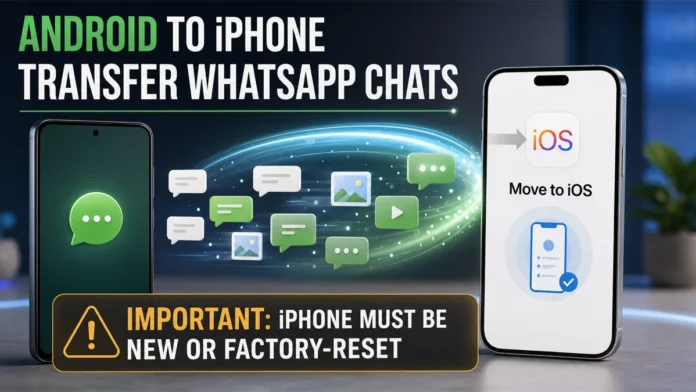
A WhatsApp chat transfer from Android to iPhone can move years of conversations, photographs, videos and other supported media to a new device. However, users must complete one crucial step before starting: the iPhone must be new or restored to factory settings.
Apple’s official Move to iOS process works during the iPhone’s initial setup. If the new iPhone has already been configured, users must erase it and begin the setup again. Otherwise, the required “From Android” transfer option will not be available and the WhatsApp migration may not proceed.
The transfer also requires both phones to have sufficient battery and storage, a stable connection and the same telephone number for WhatsApp verification.
The Most Important Requirement: Reset the iPhone First
Users who have already completed the iPhone setup should not immediately open WhatsApp and begin using it.
To access the Android migration option, the iPhone must display its initial “Hello” setup screen. If setup has been completed, Apple instructs users to erase the device and start again.
The reset option is available under:
Settings > General > Transfer or Reset iPhone > Erase All Content and Settings
Erasing an iPhone permanently removes the information currently stored on it. Therefore, users should back up any important content added to the device before performing a factory reset.
Apple’s current instructions confirm that anyone who has finished setting up an iPhone must erase it before using Move to iOS. Users unwilling to reset the device can transfer some content manually, but the official WhatsApp migration process requires the initial setup workflow. Apple’s Android-to-iPhone transfer instructions
Requirements Before Transferring WhatsApp Chats
Check these requirements before starting:
- The iPhone must be new or factory-reset.
- The Android device must run Android 5 or later.
- The iPhone must run iOS 15.5 or later.
- Install the latest supported version of WhatsApp on both devices.
- Install Apple’s Move to iOS application on the Android phone.
- Use the same telephone number on the old Android phone and the new iPhone.
- Keep both phones connected to power.
- Ensure the iPhone has enough free storage for the transferred content.
- Keep Wi-Fi enabled and maintain a stable connection.
- Keep the two devices close together until the iPhone’s progress bar finishes.
Apple also supports a direct USB-C cable connection between compatible devices, which may make a large transfer faster.
How to Transfer WhatsApp Chats From Android to iPhone
1. Begin Setting Up the iPhone
Turn on the new or factory-reset iPhone and follow the setup instructions.
When the Transfer Your Apps & Data screen appears, select From Android or Move Data from Android, depending on the iOS version displayed.
Do not finish the iPhone setup before selecting this option.
2. Open Move to iOS on the Android Phone
Download and open Apple’s Move to iOS application on the Android device. Accept the terms, provide the requested permissions and follow the instructions displayed on the screen.
Some compatible devices running Android 17 or later may support a direct transfer without separately downloading Move to iOS. Availability depends on the Android device and its manufacturer.
3. Enter the Security Code
The iPhone will display a six-digit or 10-digit code. Enter this code in the Move to iOS application on the Android phone.
The iPhone will then create a temporary private Wi-Fi network. When prompted, connect the Android device to that network and wait for the Transfer Data screen.
A warning about a weak internet connection may appear on the Android phone because it is connected directly to the iPhone. Apple says that warning can generally be ignored during this stage.
4. Select WhatsApp
Choose WhatsApp from the available data categories on the Android device.
Tap Start and allow WhatsApp to prepare the account information, chat history and supported media for export. This stage may take time if the account contains many messages or large videos.
Once preparation is complete, WhatsApp may sign the user out on the Android phone.
5. Return to Move to iOS
Tap Next to return to the Move to iOS application. Select Continue to begin sending the prepared data to the iPhone.
Leave both devices untouched, connected to power and close to each other. Even if the Android phone reports that its part of the process is complete, wait until the loading bar on the iPhone finishes.
Opening another Android application or answering a telephone call during migration can interrupt the process.
6. Finish Setting Up the iPhone
After the progress bar completes, tap Done on the Android phone. Continue with the remaining iPhone setup steps.
Do not erase or trade in the Android phone yet. Keep it unchanged until the transferred chats and media have been verified on the iPhone.
7. Install WhatsApp on the iPhone
Download the latest version of WhatsApp from Apple’s App Store.
Open the application and verify the same telephone number used on the Android device. When WhatsApp displays the import or restoration prompt, tap Start and wait for the process to finish.
The transferred conversations should appear after activation is complete.
Official requirements and supported data are detailed in the WhatsApp Android-to-iPhone migration guide.
What WhatsApp Data Can Be Transferred?
The official migration process supports:
- WhatsApp account information
- Profile photograph
- Individual conversations
- Group conversations
- Community chats
- Chat history
- Supported photographs and videos
- Voice messages and other supported media
- WhatsApp settings
- Channel updates
The migration occurs directly between the two devices. WhatsApp says it cannot view the transferred data.
Information remains on the Android phone unless the user deletes WhatsApp or erases the device. This provides an additional safeguard until the transfer has been checked.
What Will Not Transfer?
Not every category of WhatsApp data can be moved from Android to iPhone.
The current limitations include:
- WhatsApp call history
- The user’s display name
- Peer-to-peer payment messages
- Media received through WhatsApp Channels
- WhatsApp Business chat migration
Regular WhatsApp conversations are supported, but WhatsApp’s help page states that transferring chats from Android to iPhone is not currently available through the WhatsApp Business application.
This distinction is important for companies and professionals who rely on Business accounts.
Do You Need Google Drive or iCloud?
A Google Drive backup is not used to restore Android WhatsApp chats directly on an iPhone. Android and iOS employ different cloud-backup systems.
Move to iOS transfers the supported WhatsApp data directly between the devices. The imported information does not automatically become an iCloud backup after migration.
Once the transfer is complete, users should open WhatsApp on the iPhone and create a new iCloud backup:
WhatsApp > Settings > Chats > Chat Backup > Back Up Now
Keep the Android phone unchanged until that backup has been created and the transferred data has been checked.
Existing and Transferred Chats Cannot Be Merged
The official process does not merge separate WhatsApp histories.
If WhatsApp has already been activated and used on the iPhone, its existing conversations cannot simply be combined with the old Android history. This is another reason to perform the migration before using WhatsApp on the new device.
Starting with a new or factory-reset iPhone reduces the risk of creating two incompatible chat histories.
Do Not Change the Telephone Number During Migration
The WhatsApp account must use the same telephone number on both phones during transfer and verification.
If the user intends to adopt a new number, WhatsApp recommends changing it on the old phone before beginning the device migration. Its Change Number feature transfers the account information and chat associations to the new number.
Changing the number in the middle of migration may prevent WhatsApp from recognizing the transferred account information.
What to Do if the Transfer Stops
If the migration fails or becomes stuck:
- Restart both phones.
- Keep both devices connected to power.
- Turn off mobile data on the Android phone.
- Disable features that automatically switch Wi-Fi networks.
- Ensure Move to iOS remains open on the Android screen.
- Check that the iPhone has sufficient storage.
- Factory-reset the iPhone and begin a fresh transfer.
- Reinstall WhatsApp on the Android device if its export preparation failed.
Do not delete WhatsApp or erase the Android phone until the migration has been successfully completed and verified.